Getting Started with KSeF
This guide describes step by step how to configure the integration with the National e-Invoice System (KSeF) in the MyInvoice app.
Prerequisites
Before you begin, make sure you have an authentication certificate generated on the KSeF portal. The certificate consists of two files: the certificate (.crt) and the private key (.key).
Step 1 — Select Environment
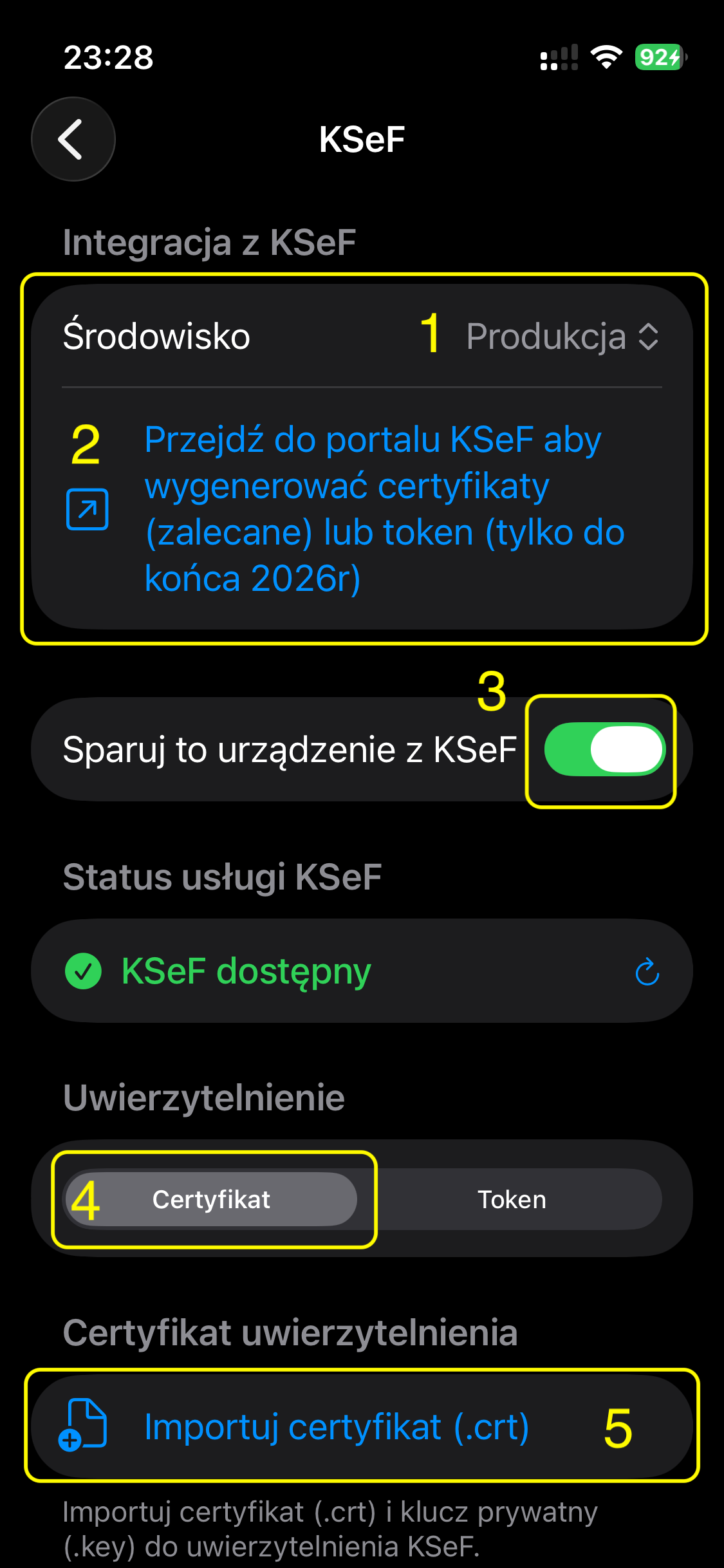
Go to Settings → KSeF in the app. In the Environment field (1) select Production.
Step 2 — Create KSeF Certificates
If you do not yet have certificates, use the link (2) Go to the KSeF portal to generate certificates (recommended), or a token, or log in to KSeF from this computer. Please note that tokens are available only until the end of 2026 and do not allow offline invoice signing, so we recommend using certificates.
On the KSeF website create a certificate and name it Authorization. Save the .crt and .key files to your device or iCloud Drive. Remember the password you set (write it down for future reference). You can also create an Offline signing certificate — name it Offline.
Step 3 — Pair Device with KSeF
Enable the Pair this device with KSeF toggle (3). The certificate and key are stored only on this device in the protected system keychain and are not synchronised to other devices via iCloud. This limits unauthorised access to KSeF from other devices. If needed, you can upload the same certificate to a second device.
Step 4 — Select Authentication Method
In the Authentication section select the Certificate tab (4).
Step 5 — Import Certificate
Tap Import Certificate (.crt) (5). A file picker will open.
Step 6 — Select the Authorization Certificate File
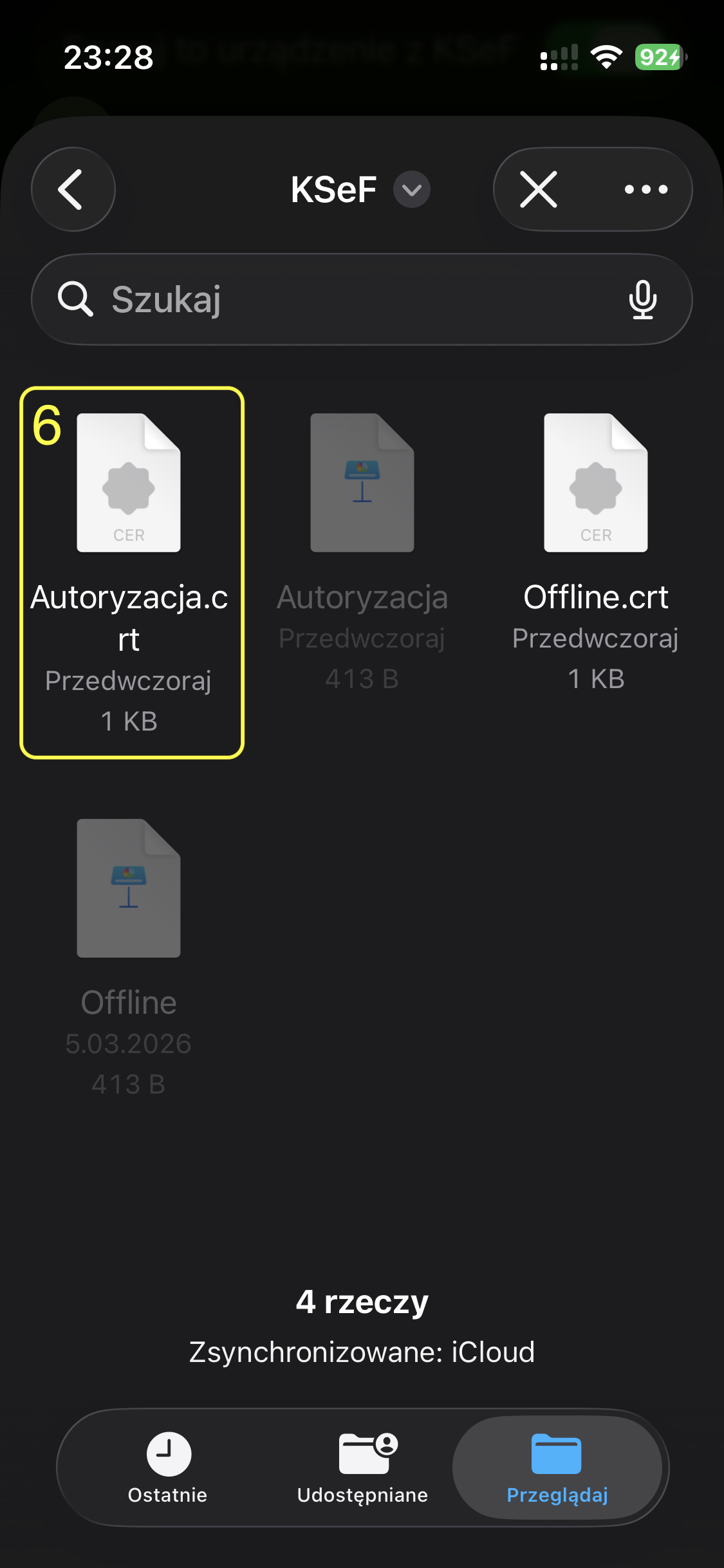
In the file picker find and select the certificate file, e.g. Authorization.crt (6), then confirm your selection.
Step 7 — Import Private Key
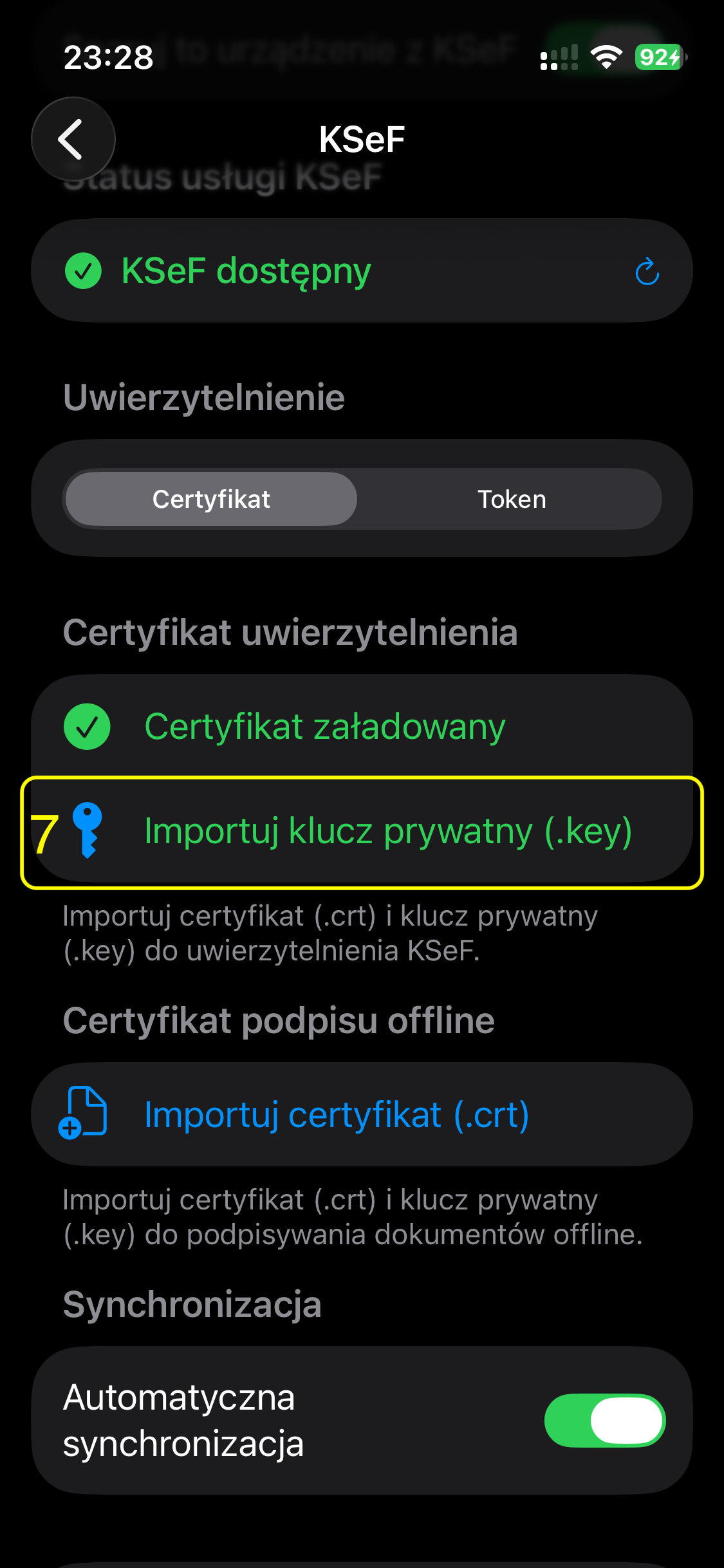
After the certificate has loaded, tap Import Private Key (.key) (7).
Step 8 — Select the Private Key File
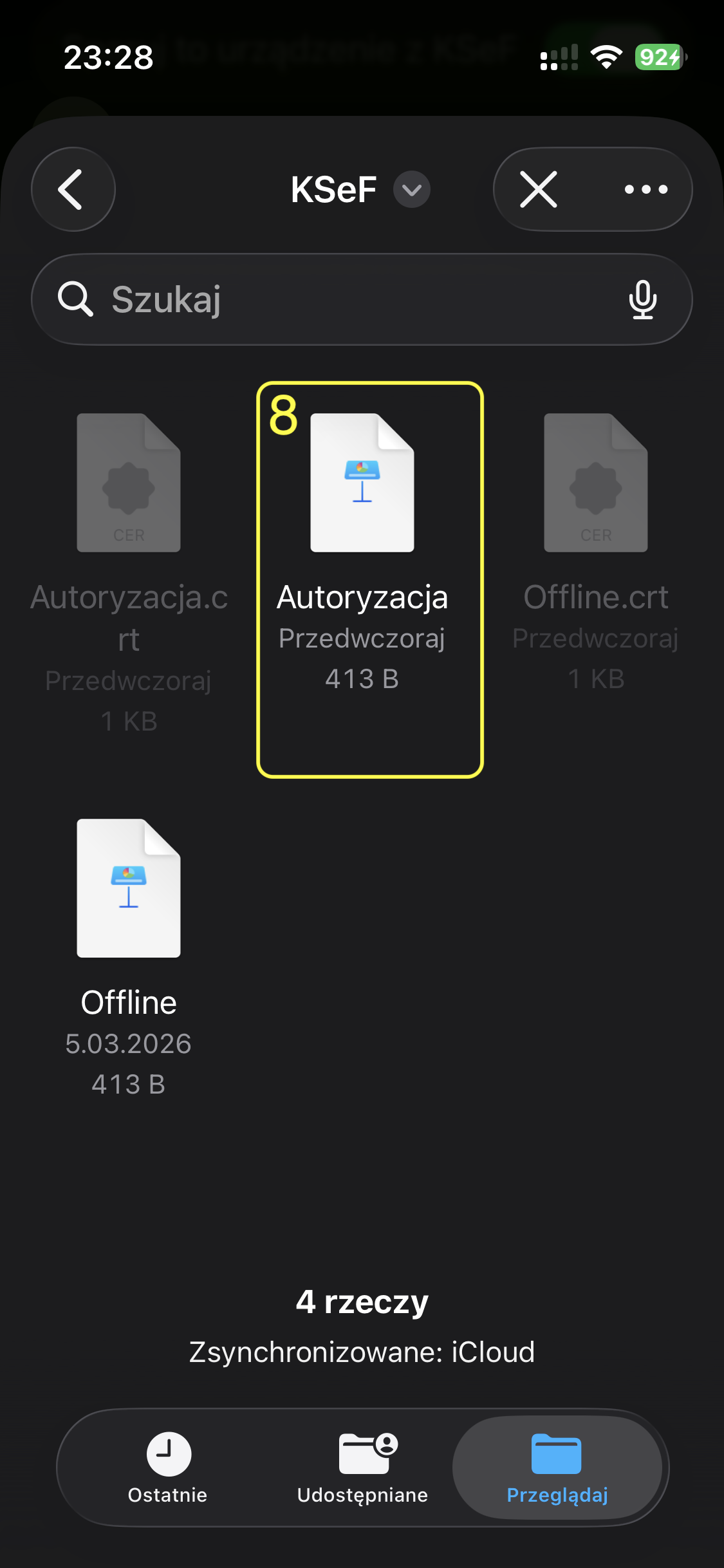
In the file picker find and select the private key file, e.g. Authorization.key (8). Note: the “key” file extension may not be visible.
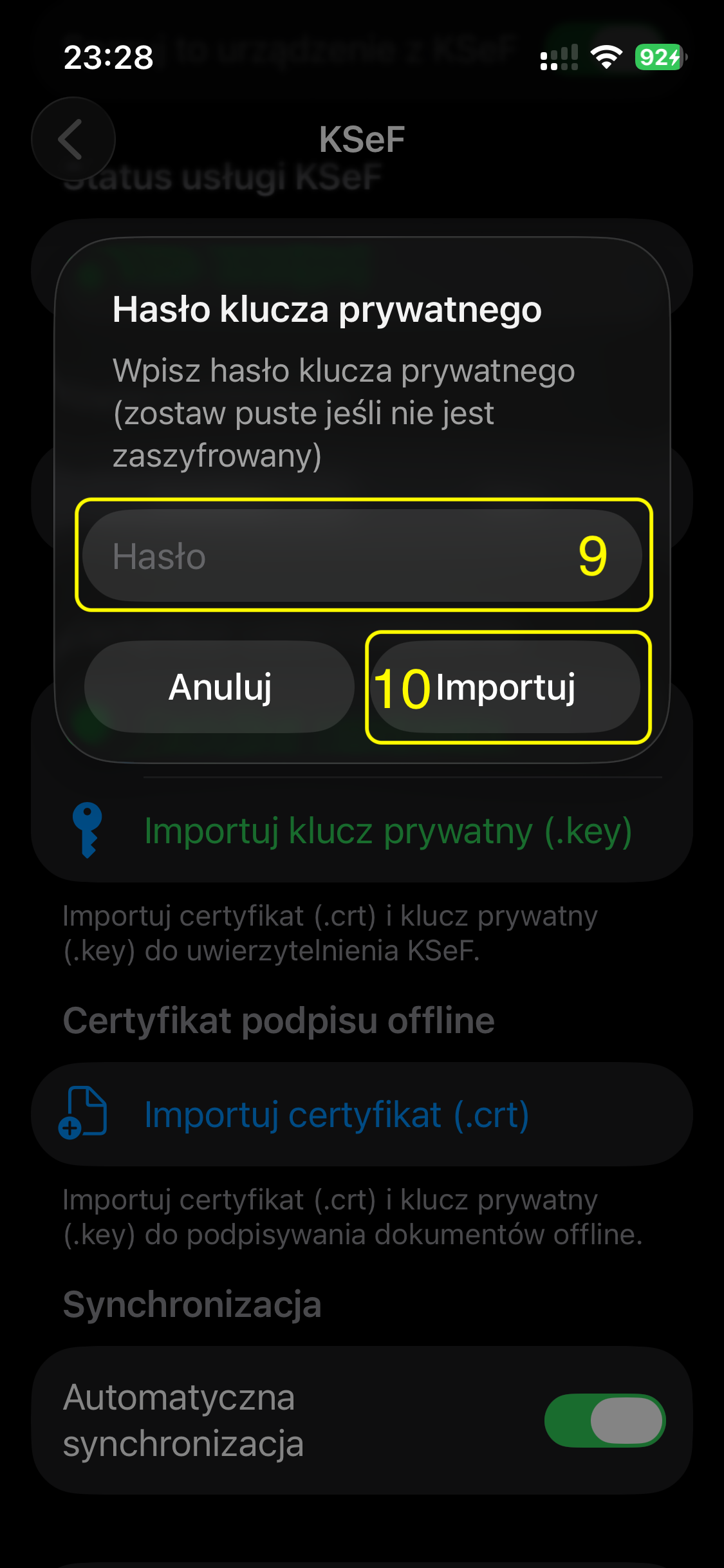
Step 9 — Enter Private Key Password
In the dialog box enter the password for the private key (9). If the key is not encrypted, leave the field empty. Then tap Import (10).
Done
After successfully importing the certificate and private key, your device is paired with KSeF. You can now send and receive e-invoices directly from the MyInvoice app.
You can also add the Offline certificate in exactly the same way.